Co-Authoring in OpenText Content Management
For organizations that rely on OpenText Content Management to govern their critical documents, one question has come up repeatedly: Can my team edit and collaborate on Office documents without downloading them, losing version history, or breaking governance policies? The answer is yes and the path to getting there is more straightforward than many realize. With built-in co-authoring capabilities, users can open, edit, and simultaneously collaborate on Word, Excel, and PowerPoint files directly from OpenText Content Management, with all changes automatically tracked, versioned, and stored back in the repository. No emailing attachments. No overwriting each other’s work. No manual check-in.
This article walks through how co-authoring works in OpenText Content Management, the two primary integration paths available, what licensing is required, and key implementation considerations your team should understand before rolling it out.
What Is Co-Authoring and Why Does It Matter?
Co-authoring allows multiple users to work on the same Office document simultaneously, with changes appearing in near real-time for all participants. Each collaborator can see where others are working in the document, their cursor position, typed text, and edits as they happen. When used inside OpenText Content Management, this capability closes a long-standing productivity gap. Historically, users who needed to collaborate on a governed document would download a copy, work on it locally, and re-upload it, creating version confusion, audit gaps, and governance risk. Co-authoring eliminates that friction entirely.
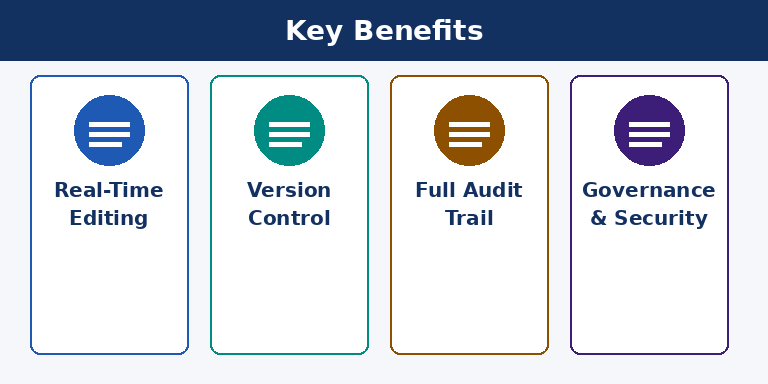
For regulated environments, federal agencies, financial institutions, healthcare organizations this is particularly significant. Documents stay inside the governed repository throughout the editing process. Version management logic handles save frequency automatically, and a full audit trail captures every action, giving compliance teams the visibility they need.
Two Integration Paths: Office Online Broker vs. Online Editing Service
OpenText provides two distinct approaches to enabling Office co-authoring within Content Management. Understanding the difference is essential, as they serve different deployment scenarios and carry different feature sets.
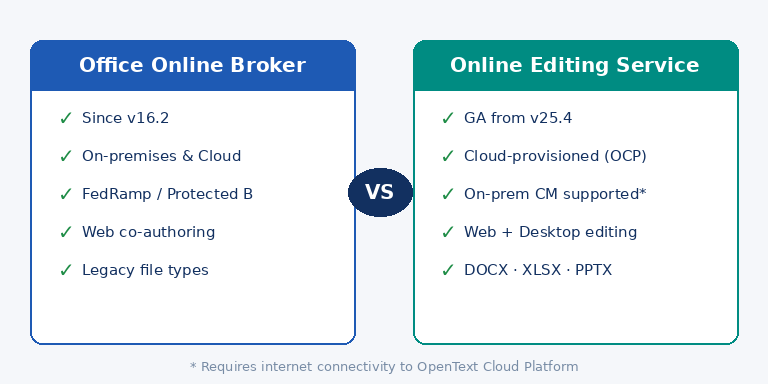
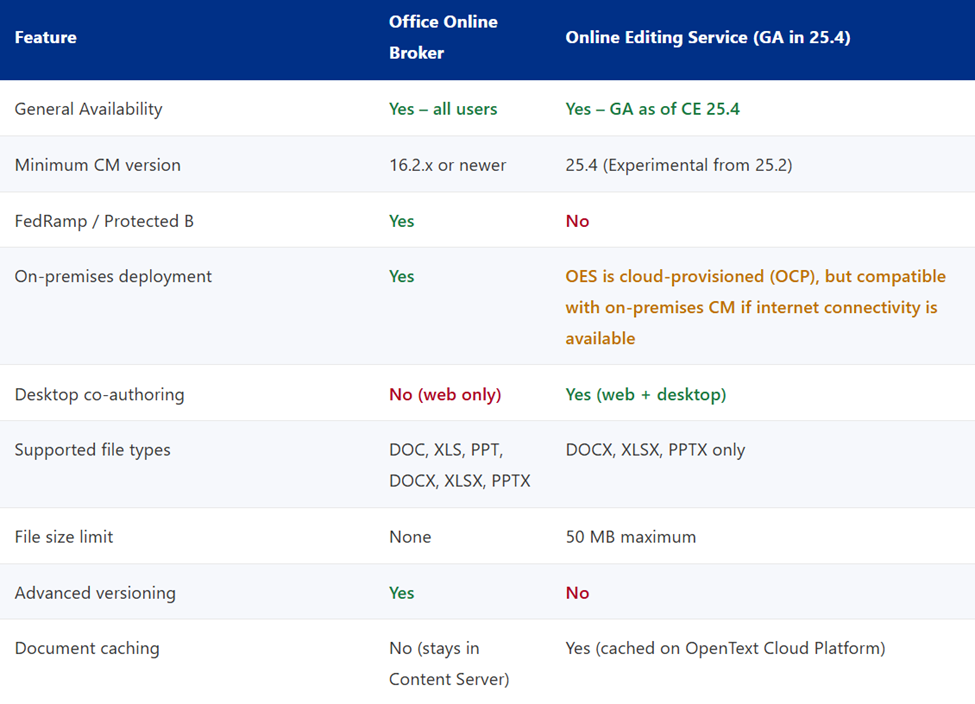
The Office Online Broker is the established, generally available integration that has been available since Content Management version 16.2.x. It connects Content Management to Microsoft Office Online, either the cloud-hosted Microsoft Office Online Service or an on-premises Office Online Server installation through a broker component that OpenText provisions and manages. This broker acts as the intermediary between Content Management and Microsoft’s document editing engines, routing requests and managing document sessions without caching content on Microsoft servers. For on-premises or hybrid deployments with strict data residency requirements (including FedRamp and Protected B compliance), the Office Online Broker with an on-premises Office Online Server is the recommended path. It supports both the Classic UI and Smart View interfaces within Content Management, and the entire workflow is browser-based. No desktop components or software installation required on the end user’s machine.
The Online Editing Service (OES) is a newer, cloud-native capability that was first introduced as an Experimental feature in Content Management version 25.2, previewed further in CE 25.3, and reached full General Availability in CE 25.4 (November 2025). The OES is a multi-tenanted SaaS application that is always provisioned through the OpenText Cloud Platform (OCP) Tenant. There is no on-premises installation of the OES itself. However, this does not mean it is restricted to cloud-hosted Content Management deployments. Organizations running Content Management on-premises can still connect to and leverage the OES, provided their environment has internet connectivity to reach the OpenText Cloud Platform. The editing session and document cache live in the OCP, while the governed content remains in your on-premises Content Management repository. For organizations operating fully air-gapped or internet-isolated environments where no cloud connectivity is permitted, the OES is not a viable option. The Office Online Broker with an on-premises Office Online Server remains the correct path in those cases. For everyone else, the OES extends co-authoring to include desktop editing alongside web editing, meaning users can open and co-author a document directly in their installed Microsoft Office desktop application, Word, Excel, or PowerPoint, while the file remains governed within Content Management. This is a meaningful expansion of capability for organizations whose users prefer or require the full desktop Office experience.
Organizations running CE 25.4 or later can now deploy the OES for general use across their full user base without any experimental caveats. That said, it is worth noting that the OES does not yet support FedRamp or Protected B compliance, is limited to PPTX, XLSX, and DOCX formats, does not support files larger than 50 MB, and does not yet include advanced versioning (major/minor versions). Organizations with stringent compliance requirements or complex versioning needs should continue with the Office Online Broker path, or consider a hybrid approach where the broker handles compliance-sensitive workflows while the OES is used for general collaboration.
What the Experience Looks Like for End Users
From the end user’s perspective, the workflow is simple. Within Content Management, a user selects any supported Office document and chooses Edit in Word Online (or Excel/PowerPoint Online). Microsoft Office Online launches in the browser with the document open and ready to edit. If another user opens the same document, both are now co-authoring. Changes appear in near real-time, cursor positions are visible, and comments can be used to communicate within the document during collaboration. When the session ends and the user closes the browser tab, the document is automatically saved back to Content Management with a new version created. No manual upload. No check-in step. The version history, audit trail, and metadata remain fully intact within the repository.
For organizations using the Online Editing Service with desktop editing enabled, the experience shifts slightly. The document opens in the locally installed Office application rather than the browser, but the governance and auto-save behavior remain the same. The file is governed by Content Management throughout.
Licensing Requirements
Co-authoring in Content Management requires active licenses from both OpenText and Microsoft. Understanding both sides is important when planning a rollout.
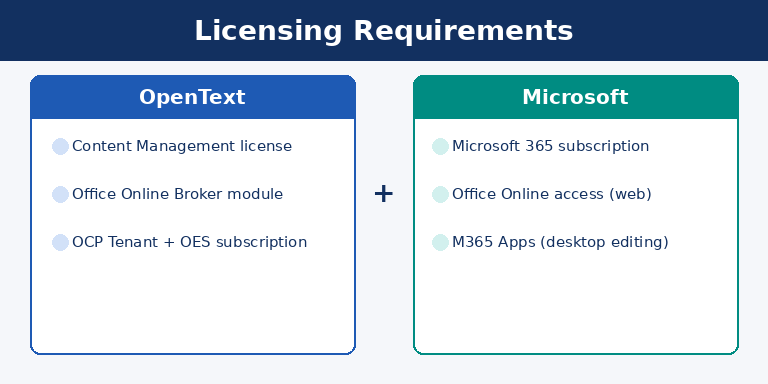
On the OpenText side, you need an active Content Management license, plus the Office Online Broker module if you are using the broker path. For the OES path, your OpenText Cloud Platform (OCP) Tenant must be provisioned with the appropriate Online Editing Service subscription. This is handled by OpenText and should be discussed directly with your OpenText account representative or your implementation partner.
On the Microsoft side, every user who participates in web-based Office Online co-authoring must have a valid Microsoft 365 subscription that includes access to Office Online. Plans such as Microsoft 365 Business Basic, Business Standard, Business Premium, and Microsoft 365 E3/E5 all include Office Online access. Organizations using the on-premises Office Online Server path instead of the Microsoft cloud service need to ensure their Office Online Server installation is properly licensed through Microsoft’s Volume Licensing or similar agreement. For the OES desktop editing path, users also need a Microsoft 365 license that includes the installed Office desktop applications (e.g., Microsoft 365 Apps for Enterprise).
Single Sign-On via OpenText Directory Services (OTDS) and Microsoft Azure Active Directory (Entra ID) is also recommended for a seamless user experience. When SSO is configured, users authenticated in Content Management pass their credentials through to the Office Online editing session without being prompted to log in again. A significant usability improvement for daily workflows.
Key Implementation Considerations
Before enabling co-authoring in your environment, there are several technical and organizational factors worth addressing up front.
Network and connectivity requirements. For the Office Online Broker (hybrid deployment), Content Management must be able to make outbound connections to Microsoft’s Office Online Discovery URL. If your Content Management instance is on-premises and behind a restrictive firewall, you may need to configure a proxy server to allow these outbound requests. For Content Management versions 20.2 and later, proxy settings can be configured directly within the O365 Office Online Settings administration page. For older versions, this requires changes to the opentext.ini configuration file.
SSL and certificate requirements. The Content Server Access URL (or AppWorks proxy URL, for on-premises deployments) must be SSL-enabled and have a valid, complete certificate chain. If any part of the certificate chain is broken or self-signed in a way the broker cannot validate, the Office Online Broker will not be able to establish a connection to Content Management. Certificate chain validity can be verified using publicly available tools such as the DigiCert certificate checker.
Editor availability settings. The Office Online Editor must be explicitly enabled in Content Management before users can access co-authoring. Administrators can configure editor availability globally or on a per-user or per-group basis through the Editor Administration > General Editor Availability page in Content Server. Without this step, users will not see the “Edit in Word Online” or “Open in Word Online” options when right-clicking documents.
Trusted Referring Websites. If the Trusted Referring Websites security parameter is enabled in your Content Management configuration, you will need to add *.officeapps.live.com and login.microsoftonline.com to the trusted list. Omitting this step is a common source of co-authoring failures in environments that have this security control enabled.
User adoption and change management. The technical setup is only half the equation. Co-authoring changes how teams interact with documents, and some users, particularly those accustomed to downloading and re-uploading files may need guidance on the new workflow. Brief training, a clear internal communication about what’s changing, and a short pilot with a willing team before broad rollout will all significantly improve adoption rates.
Conclusion
Co-authoring in OpenText Content Management represents a meaningful step forward in how organizations balance collaboration with governance. By allowing teams to edit and co-author Office documents directly within the repository, without ever breaking the chain of custody, it eliminates the shadow copies, version confusion, and audit gaps that have long been the hidden cost of productivity. Whether you are evaluating the established Office Online Broker path for a compliance-sensitive environment, or exploring the new Online Editing Service for its desktop co-authoring capabilities, the right starting point is a clear-eyed assessment of your deployment model, your Microsoft 365 licensing posture, and the specific document types and user workflows you need to support.
Nanavati Consulting has deep experience implementing and optimizing OpenText Content Management environments, including Office Online integrations across on-premises, hybrid, and cloud deployments. We can help you evaluate which co-authoring path fits your organization and ensure the implementation is done right the first time.
Contact us today to schedule a free demo and a personalized consultation.